

Connect to Claude
Connect the EURO MCP server to Claude.ai so you can manage your wallet, send payments, and check balances directly from any Claude conversation — no local setup required.
Prerequisites
Section titled “Prerequisites”- A Claude.ai account (Pro or Team)
- A Quantoz API key — create one in the Quantoz portal
-
Open Connectors
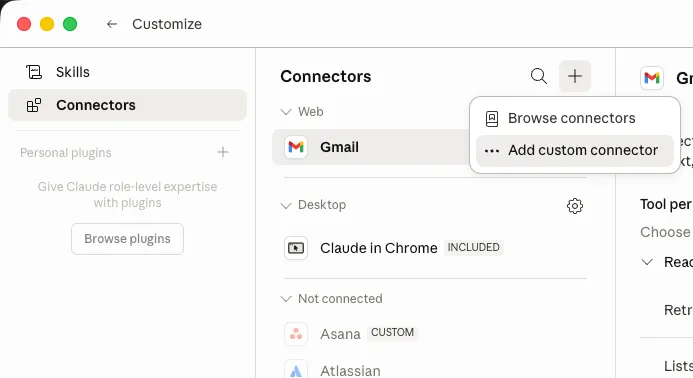
In Claude.ai, click Customize in the left sidebar, then select Connectors. Click the + button and choose Add custom connector.
-
Enter the MCP server URL
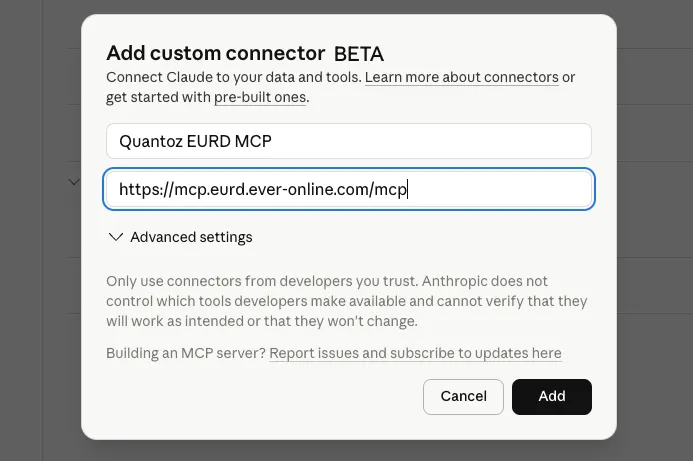
Fill in the form:
- Name:
Quantoz EURO MCP(or anything you like) - URL:
https://mcp.ai.quantozpay.com/mcp
Then click Add.
- Name:
-
Authorize with your API key
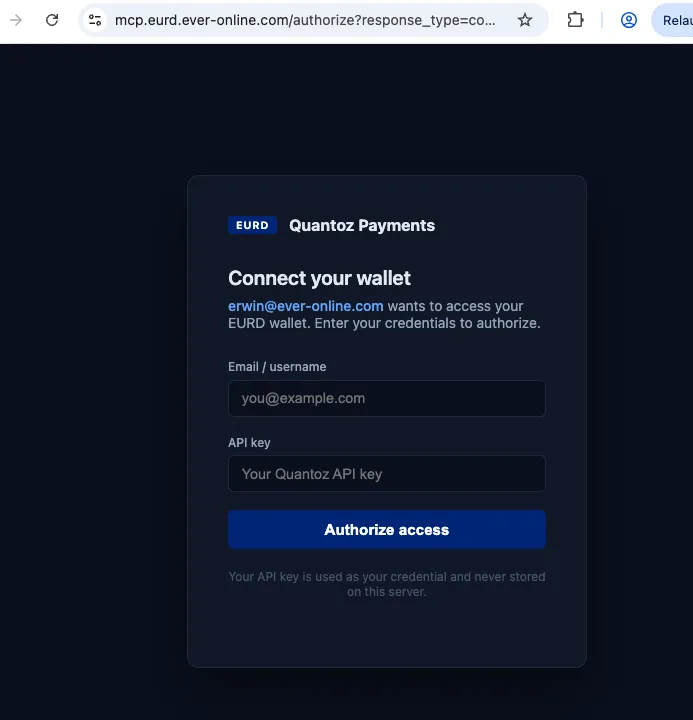
Claude will open the authorization page. Enter:
- Email / username: your email address
- API key: your Quantoz API key
Click Authorize access. You’ll be redirected back to Claude automatically.
-
Start using it
The connector is now active. Try asking Claude:
“What’s my EURO balance?”
“Send 10 EURO to account ACC-123”
“Show my recent transactions”
Troubleshooting
Section titled “Troubleshooting”“Not found” after clicking Authorize — make sure you’re using the exact URL https://mcp.ai.quantozpay.com/mcp with no trailing slash.
Authorization keeps failing — double-check your API key in the Quantoz portal. Keys are shown only once when created.
Connector shows as disconnected — click the connector and choose Reconnect to go through the authorization flow again.